Barr hardware and software products are capable of very high speeds for both communications and printing; however, because Barr products function in environments that can be complex, the expected performance may not be realized if various components of the environment are not well tuned. This document helps you diagnose throughput problems and find performance bottlenecks.
For specific recommendations on how to clear those bottlenecks and improve performance, see the BARR/RJE SDLC Performance Tuning and BARR/RJE 802.2 Performance Tuning topics.
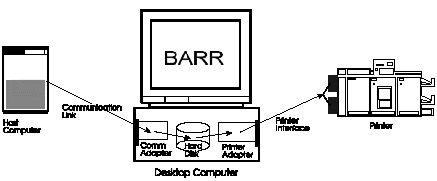
The following diagram shows the basic components in a typical Barr product environment.
Configurations can be very different from one site to the next. In the diagram, generic labels represent components that vary widely, such as the communication link or printer interface. In your case, the data flow may also differ somewhat. For instance, your data may not write to the hard disk if you do not use the Barr Print Spool feature, or your data may not go to a printer but to a different destination, such as a tape drive.
Regardless of differences between your configuration and the diagram above, the basic concept does not change. The diagram shows that two distinct processes occur: the Barr software (1) receives data from a source or host over some type of communication link and (2) sends the data to some kind of destination, usually over a printer interface.
Some throughput problems unfortunately turn out to be cases of unrealistically high expectations. Be sure to read carefully the tuning document that addresses your type of communication link. Besides giving specific tips for improving your communications throughput, it should give you a good idea of what you can realistically expect.
Our general approach for troubleshooting the throughput problem includes these steps.
Separate the two processes.
Measure the throughput of each process separately.
Compare each process with its expected throughput.
Tune the process that is creating the bottleneck.

The first step in diagnosing a throughput problem is to separate the two processes just mentioned, which we can refer to as the communication process and the printing process. Below, you will find specific instructions for isolating the processes. By testing them separately, you can quickly narrow the search for the performance bottleneck.
You can easily separate the processes by receiving a test file to the hard disk of the PC, without sending it to the printer. By cutting the printing process out of the picture, you can measure the performance of just the communication process. If the communication process seems to be performing well, you can next isolate the printing process by sending the test file from the PC hard disk to the printer and measuring that performance.
 This approach
does not apply to AFP printing, since with AFP printers the two processes
are not separate.
This approach
does not apply to AFP printing, since with AFP printers the two processes
are not separate.
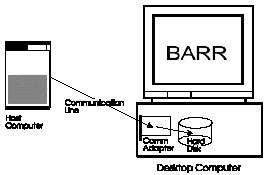
Most throughput problems are due to bottlenecks in the communication process, rather than in the printing process. The communication process tends to be more complex and involve more pieces, thereby creating a greater possibility of a weak link or a mismatch in parameters. Our first step is to isolate the communication process and accurately measure the communication speed. The following diagram illustrates the concept of isolating the communication process.
Here are the specific steps you can take to test the first of the two processes, the communication process. These steps assume that the Barr software is already up and running and has successfully connected to the host computer. Before running this test, stop all other activity in the Barr software. In addition, try to find a test file on the host computer that you can send at will. A good size for this test file would be around 1 megabyte, or about 8,000 to 15,000 lines of data.
From the Operation screen, go to the Advanced menu, and from there, to the Assign Devices menu. Locate the source device that will be generating the data. In the case of BARR/RJE, the source is usually PR1. For other hosts, the source will have different names, such as TW11 for PRINT/TWINAX or BARRTCP1 for BARR/PRINT for TCP/IP. The source device should be assigned to write to the print spool or to a disk file as follows:
|
PR1 |
|
PR1 |
If the source device is already pointing to SPOOL or (file), you can move directly to step 3. Otherwise, complete step 2 to change the assignment.
Using the arrow keys, move the highlight to the arrow after the source device and press ENTER. If you see SPOOL as a possible destination, select it by highlighting it and pressing ENTER, otherwise select the (file) destination. Fill in the next screen as shown below.
|
Beginning of file name: THRUTEST |
|
Ending of file name is not used. |
Once this screen is filled in correctly, press ENTER to save it and then press the ESC key twice to return to the Operation screen.
If you are using the Barr Print Spool feature, switch to the Spool screen (by pressing CTRL+ALT+P). On this screen, set all printers to a DISABLED state to make sure the test file does not print. If the source device was pointed to (file) in the previous steps, skip this step.
The Barr software is now ready for the test. Switch back to the Operation screen (using CTRL+ALT+O), make sure there is no other activity in the Barr software, and then start the transmission from the host computer. You will not need to time the transfer manually, since the Barr software displays time stamps for the start and end of the process on the Operation screen.
When the transfer is complete, you should see messages on the Operation screen that look something like this:
|
WRITING: C:\SPOOL\THRUTEST.001 12:29:20 |
|
CLOSE: C:\SPOOL\THRUTEST.001 12:34:10 |
The first message appears at the start of the transfer, and the second appears when it is complete. Use the time stamps on the right side to calculate the total transfer time in seconds. For example, the time stamps above indicate the transfer took 10 seconds less than 5 minutes, or a total of 4 minutes and 50 seconds, which is 4 * 60 + 50 = 290 seconds.
If you are using the Barr Print Spool feature, just switch to the Spool screen using CTRL+ALT+P. The last file on that screen should be the file you just received (scroll down if there is more than a screen full of files). The size of the file in bytes will show in the Size column. If you received the file to (file), then go to DOS and use the DIR command to find the size of the file in bytes.
For our sample calculation, let us say that the file was 750,000 bytes.
The final step is to calculate the throughput in bits per second (bps). First, divide the file size by the number of seconds in the transfer time, then multiply the result by 8 to convert from Bytes/sec to Bits/sec (bps). Sometimes it is helpful to run the test a few times with different sample files or at different times in the day. The following table has a sample calculation and several blank entry lines to help you record the results.
|
Comments |
File Size in Bytes |
÷ |
Transfer Time in Seconds |
= |
Throughput in Bytes/sec |
x 8 = |
Throughput in bps |
|
Sample |
750,000 |
÷ |
290 |
= |
2,590 |
x 8 = |
20,700 |
|
|
|
÷ |
|
= |
|
x 8 = |
|
|
|
|
÷ |
|
= |
|
x 8 = |
|
|
|
|
÷ |
|
= |
|
x 8 = |
|
|
|
|
÷ |
|
= |
|
x 8 = |
|
The numbers in this example are rounded off to three significant digits.
The next step in the diagnostic process is to compare the numbers you have generated to the speed and type of your communication line to see if you are getting the kind of throughput expected on that type of line. This raises the question of exactly what throughput you expect to see, which is often an area of some confusion.
Part of the confusion arises from the units of measurement used. It is appropriate to measure throughput in terms of lines per minute or pages per minute in a printing environment, but these units are not really appropriate for a communication link. Since a communication link processes data in bits, bytes, or packets of data, it is more appropriate to measure the throughput in bytes per second or bits per second. We choose to use bits per second (bps) for all measurements, since that is the standard used in most kinds of communications, including SDLC and Token Ring. Later on, we will relate these numbers back to the printing environment. One other detail is that when measuring communication speeds, 1 Kbps = 1,000 bps and 1 Mbps=1,000,000 bps. The use of K and M is a little different here than when measuring memory, where 1 KByte is actually 1,024 Bytes.
For tuning information, refer to the document that describes your type of communication link. It is titled BARR/RJE SDLC Performance Tuning, or BARR/RJE 802.2 Performance Tuning. This document will help you determine whether your communication link is performing as expected, and if not, it will help you tune the link. If your link is performing as expected (perhaps after some tuning), but you still seem to have a throughput problem, then you will want to test the second part of the picture, which is the printing process.
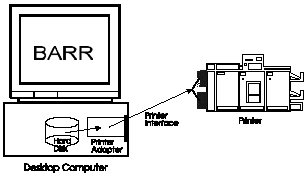
Testing the printing process is quite simple after you have completed the communication process test. You can use the file or files that you received to disk in the previous testing. In fact, it is much better to stick to the same test files, in order to prevent other unknown factors from confusing the issue. You will also be able to make a more direct comparison of the two processes. The following diagram illustrates the concept of isolating the printing process.
Following are the steps you can take to test this process. As before, these steps assume you have the software up and running, although this time there is no need to establish the connection to the host. If you are connected to the host, in order to isolate the printing process, make sure there are no file transfers or other significant activity during the test. In this test, you only need to release or send a file from the PC hard disk to the printer and measure the time it takes. The sample numbers used in the following steps are for an impact printer (or line printer) rated at 1,000 lines per minute.
If you are using the Barr Print Spool, there is very little you need to do. If there are other files in the spooler, change the class on the test file to a unique class that is not used by any other file in the spooler. For spooling, you will also need to have a watch or other timing device to measure the time it takes to print the file.
If you are not using the Print Spool but received the test files to (file) in the previous test, then you need to make a change to Assign Devices under the Advanced menu. From Assign Devices, select the SEND2 device and point it to the printer you want to test. Here are some examples:
|
SEND2 |
|
SEND2 |
|
SEND2 |
If you are spooling, release the file by modifying the printer line on your Spool screen. Change the state to READY and the FORM and CLASS to match form and class of the file. Be sure to start timing as soon as the printer state changes to PRINTING. When the Barr software has finished sending the file to the printer, the file will disappear off the spool screen, so you can stop timing at that point.
If you are not spooling, send the file to the printer by selecting Send files to (printer) from the main menu of the Operation screen. When prompted for the file name, type in the name of the file. If you used the sample from the first test, then the file name will be THRUTEST.001. Then press the ENTER key. The Barr software will post messages on the console portion of the screen similar to those you saw in the first test. Here is an example:
|
SENDING: THRUTEST.001 to PR0E 16:21:01 |
|
CLOSE: THRUTEST.001 16:30:42 |
Start by recording the transfer time. In the example above, the amount of print time was 9 minutes, 41 seconds. The total in seconds is 9 * 60 + 41 = 581 seconds, and the total in minutes is 581 ÷ 60 = 9.7 minutes.
Next, you need to calculate the speed of printing. This again raises the issue of units of measurement. Printers are generally rated in lines per minute (LPM) for line printers or impact printers, or pages per minute (PPM) for page printers such as laser printers. It makes sense to calculate the speed using the same units used by the printer manufacturer in its printer ratings.
The byte size of the files are taken from the table used in the earlier testing. The size in lines and pages might be found in several ways. The UNITS column of the Barr Spool screen will show a count of the file just printed in either lines or pages, depending on how the Barr software is configured. Your printer or the host software may also provide counts, although the host counts usually leave out the banner or separator pages. In the example we are following here, we obtained a line count from the Barr Spool screen of 9500 lines. Since this example was for a line printer, we calculate the speed in lines per minute:
9500 Lines ÷ 9.7 Minutes = 980 LPM.
In the example we have been following, the printer in question is a line printer rated at 1,000 LPM, so our calculation shows it is performing as expected. At times, however, the speed you calculate may be well below the rated speed of the printer, and there are many possible causes for this.
The most common causes have to do with the nature of the print data and the way the printer handles formatting and layout. For example, many line printers will print more slowly when in compressed mode. This means that if you are trying to print 132-column printouts on standard 8.5x11 inch paper using a compressed or small-pitch font, you will have to settle for slower print speeds. Try printing different types of jobs, ranging from simple listings to complex forms, to see if you can find a pattern for the types of jobs that print faster or slower. You can check your printer documentation for tips on this kind of problem.
Another issue affecting line printers are FCBs or VFUs. These represent the line printer’s ability to skip down quickly over large blank areas of a page where no printing is required. FCBs and VFUs are especially effective when used with preprinted special forms, such as check stock. Make sure you are taking advantage of these features if you are printing a lot of preprinted forms on a line printer.
 SPOOL
SPOOL