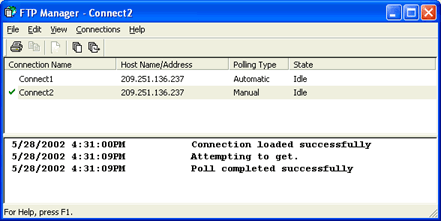
Use the FTP Manager to create and modify FTP connections. You can also view the type, state, and status of the connections. The FTP Manager connects to and transfers files between your host and the Barr Enterprise Print Server using FTP.
Click the portion of the window you want to learn more about.
The menu bar displays below the title bar. Click the following menus to learn about the available commands.
Print–Prints the contents of the console window.
Exit–Closes the FTP Manager window.
Copy–Copies the selection to the Clipboard. Copying data to the Clipboard replaces the contents previously stored there.
Find–Finds the specified text.
Select All–Selects all the items in the console window.
Connection List–Displays or hides the connection list, which shows the Connection Name, Host Name/Address, Polling Type and State. A check mark appears next to the menu item when the connection list is displayed.
Clear Console–Clears the contents of the console window. The console window displays a time stamp, messages, and status of file transfers.
Toolbar–Displays or hides the standard toolbar, which includes buttons for some of the most common menu commands. A check mark appears next to Toolbar when the toolbar is displayed.
Status Bar–Displays or hides the status bar. A check mark appears next to Status Bar when the status bar is displayed. The left side of the status bar describes the action to be carried out by the selected menu item or toolbar button.
Add–Opens the Connection Properties dialog box, which is used when creating a new FTP connection.
Modify–Opens the Connection Properties dialog box, which is used for modifying the selected connection.
Remove–Deletes the selected connection.
Poll–Connects the selected connection to the host and lists if there are any available files in the console window.
Get–Connects the selected connection to the host and retrieves any available files to the Spool Window.
Contents and Index–Opens the Help.
Barr Systems on the Web–Opens the Help with links to the Barr Systems Web page.
About FTP Manager–Displays the program information, version number, and copyright.

The toolbar provides quick access to commands. To hide or display the toolbar, on the menu bar, select View | Toolbar. To move the toolbar, click the toolbar and drag it to a new location.
Print – Prints the contents of the FTP console.
Copy – Copies the selection to the Clipboard.
Clear Console – Clears the contents of the console window.
Poll – Connects the selected connection to the host and lists any available files.
Get – Connects the selected connection to the host and retrieves any available files.
The connection list displays the available connections. A check mark appears next to the selected connection and the console displays information regarding the selected connection. The connection list columns display the connection's name, the host name and address, the polling type, and the state. These columns can be resized to accommodate the size of the field.
To display or hide the connection list, on the menu bar, select View | Connection List. The following columns display in the connection list.
Connection Name – Displays the connection name.
Host Name/Address – Displays the host name and address the connection is connecting to.
Polling Type – Displays the connection's polling type, automatic or manual.
State – Indicates the state of the connection.
Idle – The connection is not active.
Processing poll request – The connection is active and is polling.
Processing get request – The connection is active and is retrieving available files.
Receiving n bytes – The connection is receiving data, where n is the number of bytes.
Sending n bytes – The connection is sending data, where n is the number of bytes.
Displays a time stamp, messages, and status when files are transferring. When polling, any available file names will be listed in the console window.
The status bar displays at the bottom of the FTP Manager window. To display or hide the status bar, on the menu bar, select View | Status Bar. The left end of the status bar describes menu commands as you use the arrow keys to navigate through menus. It also describes actions when you pause the mouse pointer over a menu command or toolbar button.